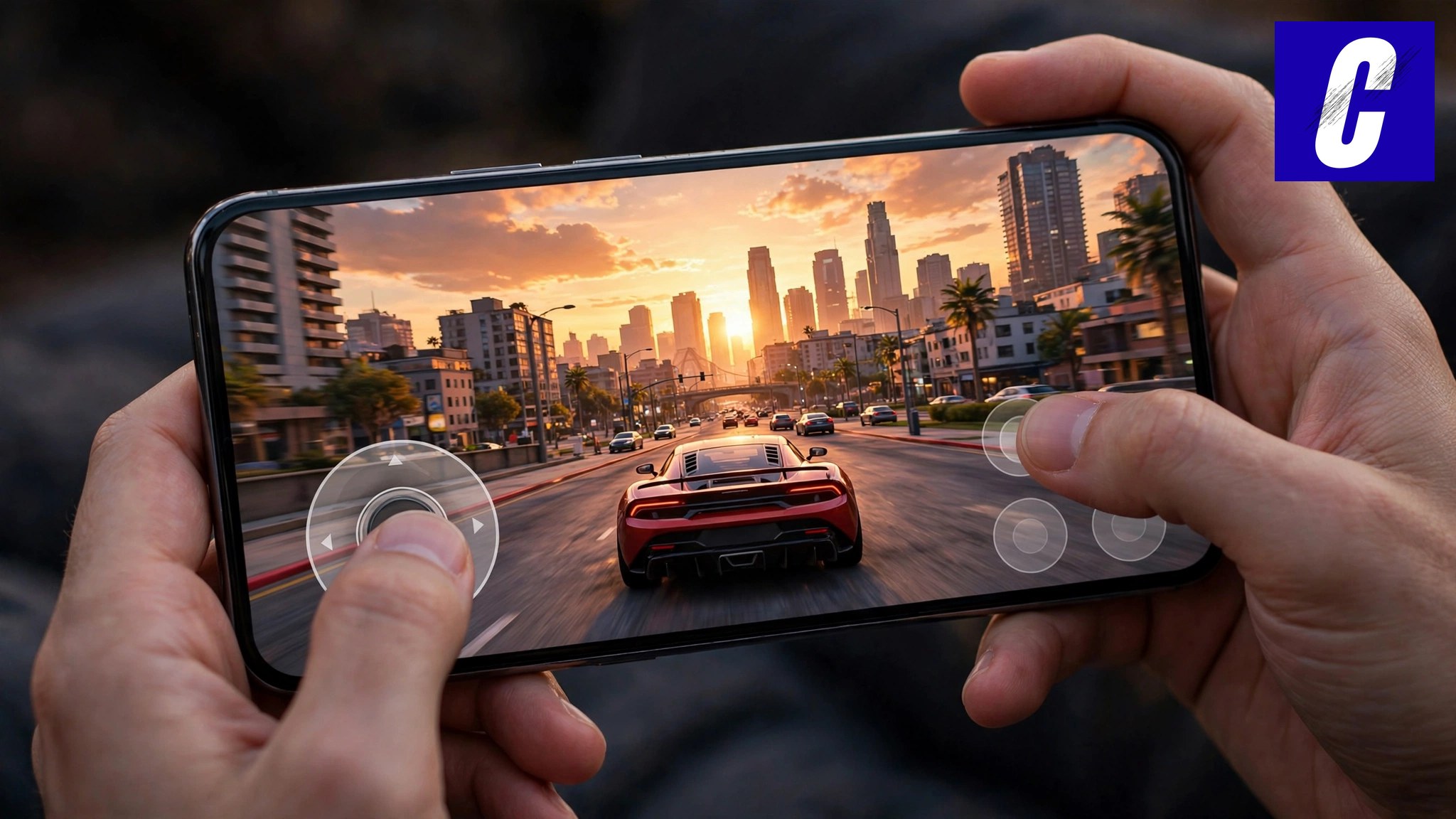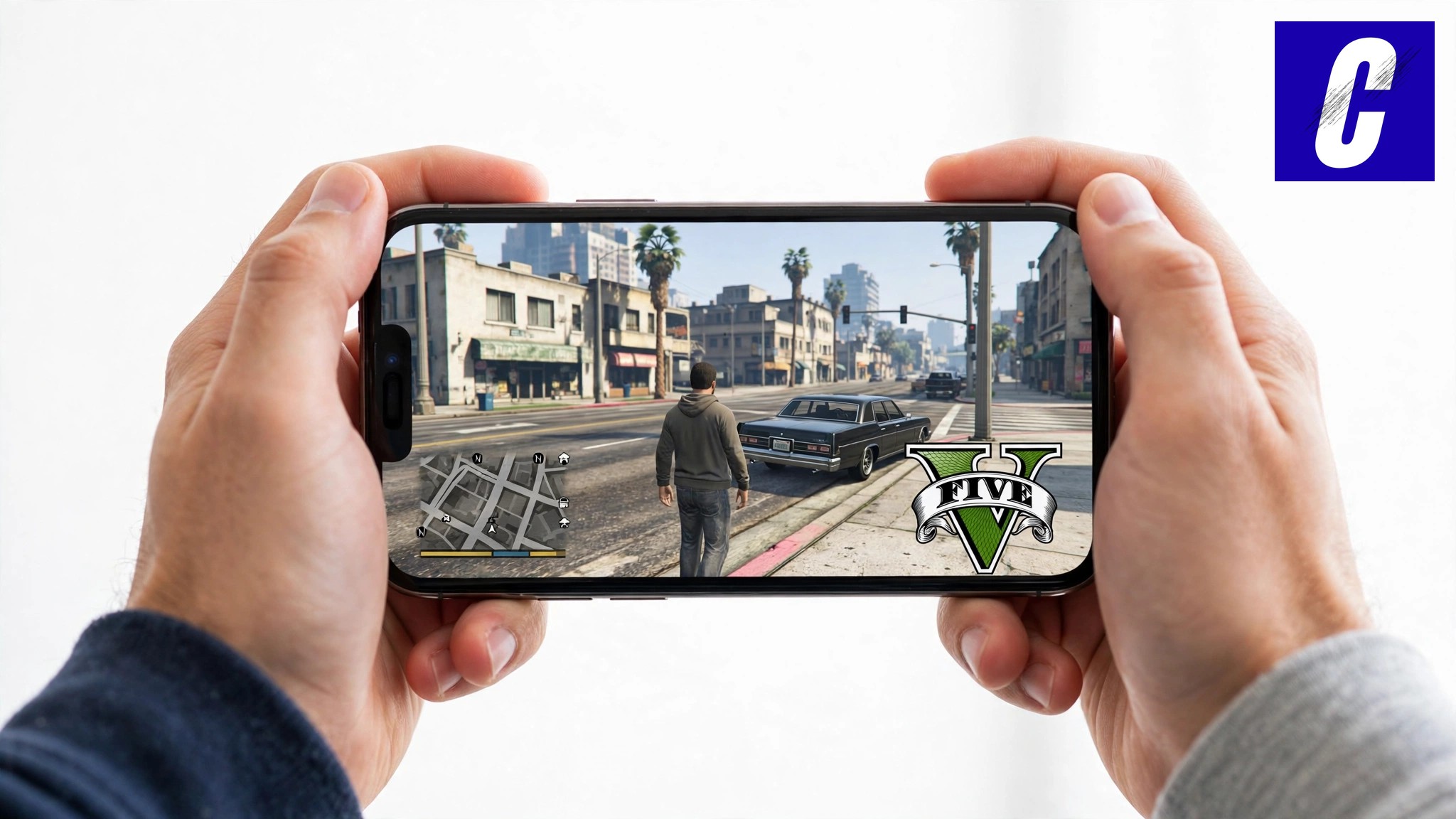
The videos are everywhere now: GTA V running on an iPhone at a smooth 50-plus FPS — not streamed, not cloud gaming, running on the phone itself, even with the internet switched off. It is real. It comes from a fan-made native port of the game (the project behind it is Muguet, which we covered in our Muguet story), distributed as an installable app plus the game’s data file. This is the complete tutorial: what you need, how to install it, the graphics settings that actually work, and honest performance results — including on a five-year-old iPhone 12 with just 4 GB of RAM.
Here is the full video walkthrough, with the setup and both FPS tests:
Before you start: what you need
- An iPhone 11 or newer on a recent iOS. 8 GB RAM models run it best; it also works on a 4 GB iPhone 12 at low settings.
- A computer — Mac or Windows PC (Linux works too) with a USB cable for your iPhone.
- Two files: the GTA 5 port IPA file (the app), and the main game data file, about 20 GB. The port ships no game data of its own — the data file is the game’s own content, from the web-build file set (
data/andb/<build>/). - The iloader sideloading tool — free and open-source, from iloader.app, for Windows, Mac and Linux.
- Your Apple ID (a normal free one) and roughly 25 GB of free space on the phone.
Download the files
⬇️ DOWNLOAD ILOADER (OFFICIAL)
Free · Open-source · Windows, Mac & Linux
⬇️ MUGUET PORT — OFFICIAL GITHUB
The open-source project behind the port
📱 GET THE GAME FILES ON TELEGRAM
The GTA 5 port IPA and the ~20 GB game data file links for this tutorial are shared on our Telegram channel — join so you don’t miss updates.
Step 1: Install iloader on your computer
Go to iloader.app and download the installer for your system (Windows, Mac or Linux). Install it like any normal app and open it. Sign in with your Apple ID inside iloader — this is how the app gets signed for your phone.
Step 2: Sideload the GTA 5 port IPA
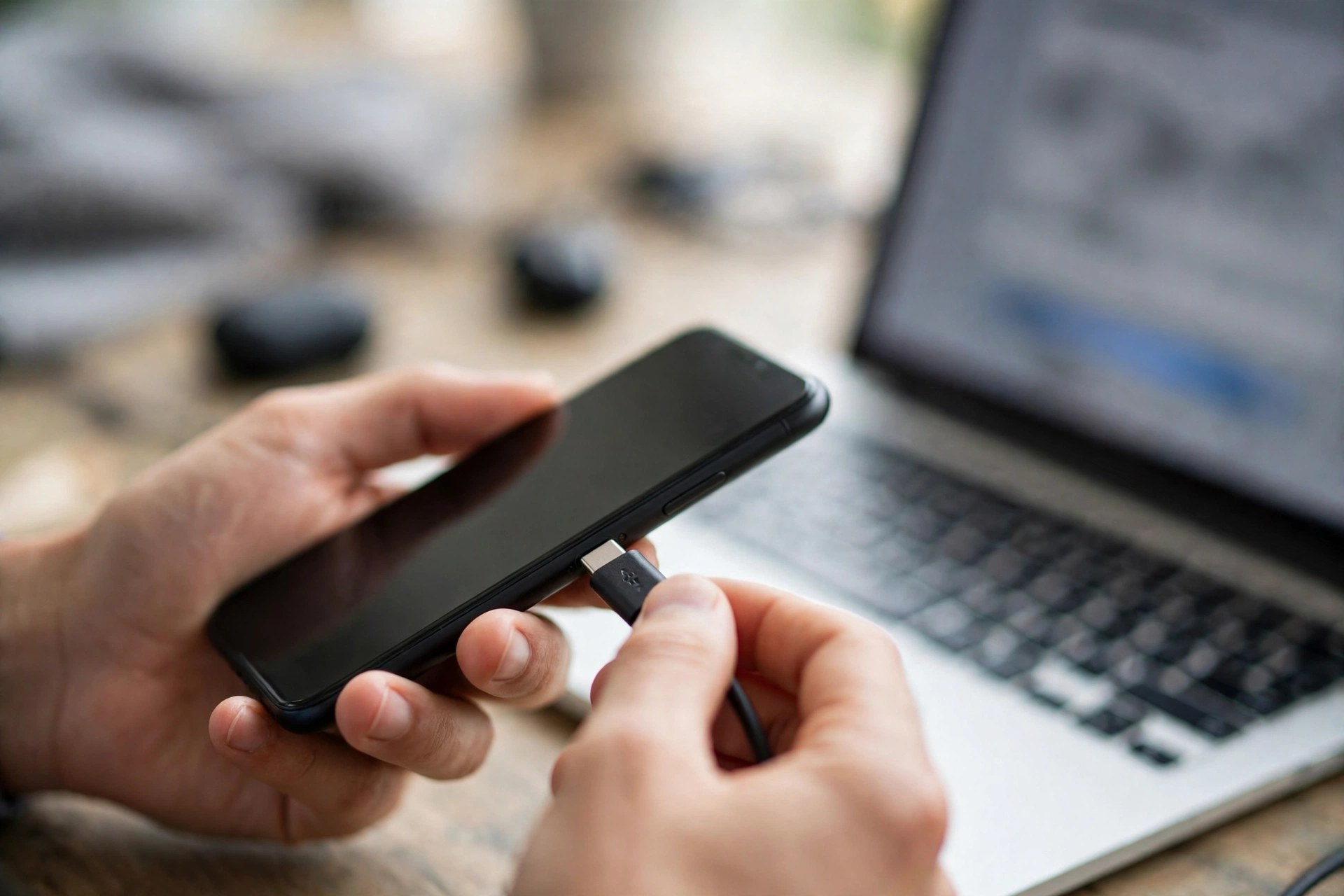
- Connect your iPhone to the computer with a USB cable.
- In iloader, select your iPhone from the device list (hit refresh if it doesn’t appear).
- Click Import IPA and choose the GTA 5 port IPA file.
- The installation starts and the port is sideloaded onto your iPhone.
Step 3: Transfer the game data file (~20 GB)
Send the main game data file to the iPhone — in the video it’s done by AirDrop, and it lands in the Files app. A cable transfer into Files works too. If your data file is compressed, you can extract it on the phone; the port can also take the data as a folder if you already dumped it.
Step 4: Allow the developer permissions
Because the app was sideloaded, iOS needs two permissions before it will run:
- Settings → General → VPN & Device Management → allow/trust the developer app.
- Settings → Privacy & Security → Developer Mode → turn it on, restart the iPhone and complete the prompt.
Step 5: Add the game data inside the app
Open the GTA 5 port app. It will ask you to add the main game data file — pick the file (or folder) you transferred into Files. The unpacking process starts; when it finishes, the game is ready. This only happens once.
Optional: Settings → Developer → enable the Metal HUD if you want live performance stats (FPS and frame times) while you play and tune settings.
Step 6: Pick the right graphics settings
The port’s graphics menu is where this is won or lost. Presets, from lightest to heaviest: Ultra Performance (for low-RAM iPhones), Battery, Performance Quality (aimed at 6 GB RAM iPhones), Balanced (720p), Quality (900p, more detailed textures), Ultra and Max Quality (native resolution). You can also set a custom resolution. The settings that matter:
- Resolution: stay at 720p or 900p for stability — the video’s own recommendation. Above that, the game may crash.
- Frame rate: choose 30, up to 60, or unlocked. For a stable frame rate, 30 FPS is the safe pick; the test runs at 60.
- Steady frame rate: turn this on if your phone gets hot — it holds the frame rate steady instead of letting it spike and throttle.
- Memory cap: leave on automatic normally; on phones with under 4 GB RAM it becomes a useful manual lever.
- Sharper upscaling (MetalFX): improves image quality through upscaling — a good way to run 720p without it looking like 720p.
- Game mode: Story mode, or Sandbox — free-roam the map with no missions (there’s also a sandbox test map).
Performance: iPhone 16 vs iPhone 12
- iPhone 16 (A18, 8 GB RAM): running fully offline (internet off in the test), the game holds more than 50 FPS — genuinely smooth open-world play. The phone does heat up over a session; a device cooler helps, or drop to the Battery preset for long sessions.
- iPhone 12 (A14, 4 GB RAM): it runs — which is remarkable by itself — at the lowest settings: about 30 FPS, rising toward ~40 with the FPS unlocked. The limit is memory, not the chip: with roughly 450 MB available to the game, textures and buildings visibly load in late, and even 540p can fill the RAM. Keep it at the lowest preset and don’t raise the resolution.
- Minimum device: an iPhone 11 or above is the stated floor; whether anything older than the 12 even boots is untested.
Why does this even work?
The port takes the WebAssembly build of GTA 5 — the version compiled to run in web browsers — and recompiles that code into a format iOS runs natively, rendering through Apple’s Metal API instead of a browser. Because the code is pre-compiled ahead of time, it sidesteps iOS’s restrictions on just-in-time (JIT) compilation, which is what used to kill projects like this. If you want the original open-source project behind it — including the build-it-yourself route with the source code on GitHub — that’s Muguet, covered in depth in our explainer article.
The honest warnings
This is a fan-made port, not a Rockstar product. The port itself contains no game files — the data file is your responsibility and should come from your own copy of the game; treat any site bundling “GTA 5 IPA + data” downloads with suspicion, because that pattern has carried scams for years. Sideloaded apps signed with a free Apple ID also expire after 7 days and need re-signing through your sideloading tool. And the project’s future isn’t guaranteed — Take-Two halted a similar native Android port in September 2026, so if you set this up, keep your files.
Want the links and updates in one place? Join our Telegram channel: Join Ccaster on Telegram.
FAQ
Can I play GTA 5 on iPhone without cloud gaming?
Yes — that’s the point of this port. Once installed, it runs natively on the iPhone and works completely offline, as the test in the video shows with the internet switched off.
Where do I download the GTA 5 port IPA and data file?
The sideloading tool (iloader) is at iloader.app, the port project is open-source on GitHub, and the IPA + data file links for this tutorial are shared on our Telegram channel. The data file is the game’s own web-build data, which should come from your own copy — beware random “GTA 5 IPA download” sites, that search is full of scams.
Which iPhones can run GTA 5 natively?
iPhone 11 and above. Best results on 8 GB RAM models (50+ FPS); a 4 GB iPhone 12 manages about 30 FPS on the lowest settings.
What graphics settings should I use?
720p or 900p resolution, the preset matched to your RAM (Ultra Performance for 4 GB phones), 30 FPS for stability or 60 if your phone can hold it, Steady Frame Rate on if it heats up, and MetalFX upscaling for a sharper picture.
Is this the official GTA 5 mobile?
No. Rockstar has never released GTA V for mobile. This is an unofficial fan port — impressive, but unofficial, and its availability could change at any time.